Showing posts with label double exposure. Show all posts
Wednesday, 16 January 2013
Monday, 7 January 2013
Ghost Photography Experimentations
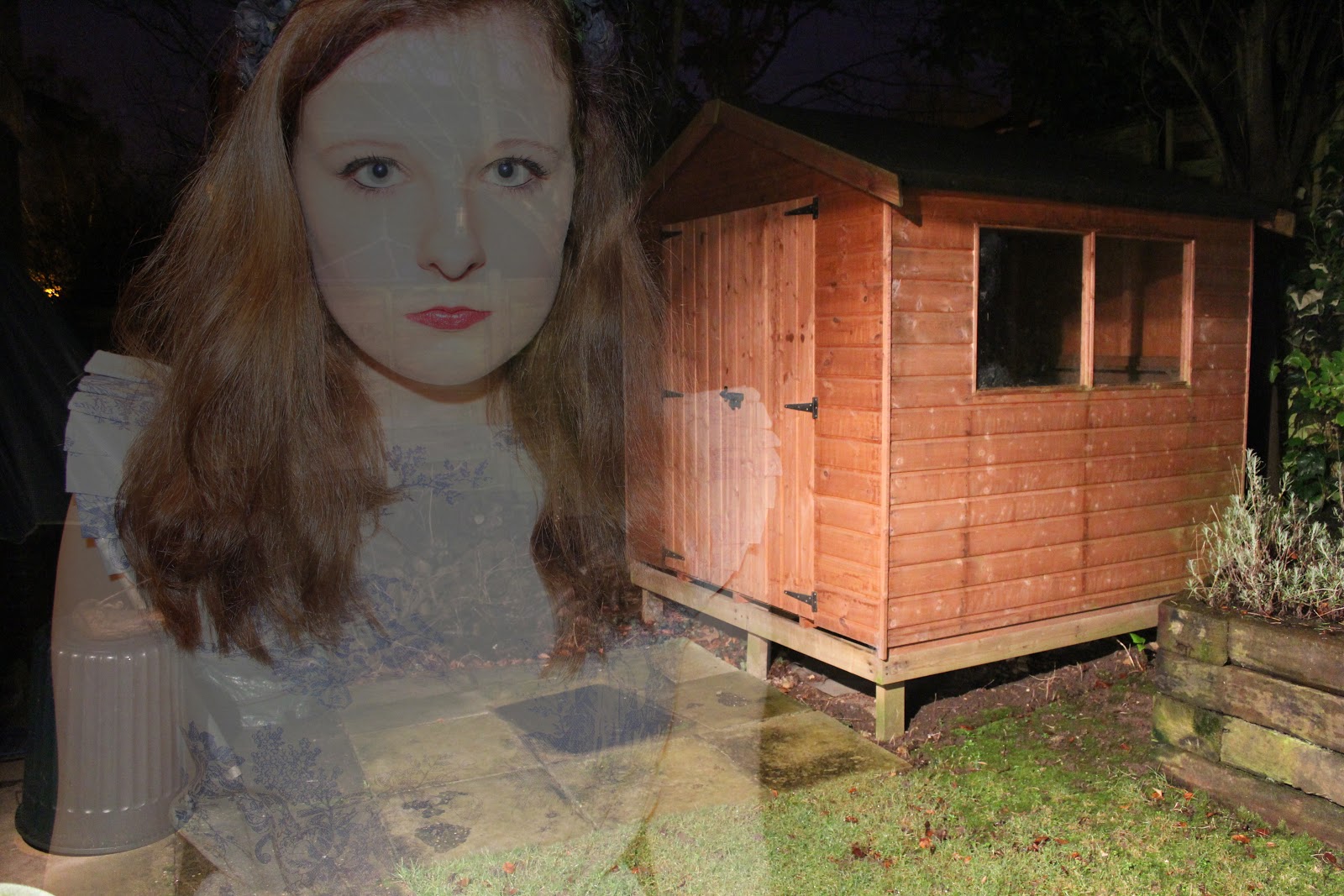
For this experiment, I decided to try out the ghost photography
technique. I took photographs and created a double exposure technique in
photoshop. Some of the photographs I took were over exposed as this
helped to give a more 'ghostly' effect when I double exposed the images:
For the three photographs above, I took the pictures outside at night time. I thought that this added a unique and mysterious effect as well as creating a more gothic feel to the photograph. I played around with using the flash on my camera - which did give a ghostly effect, however I preferred using the outside light, as this gave a slightly softer effect.
To create this effect in photoshop, open up your two images, and copy and paste one into the other as a new layer. Then change the opacity to around 50%, however this will change depending on your chosen photographs. For some of the images I also changed the layer type to screen, as this gave a more over exposed effect which I think made the ghost effect better and more interesting, as it was harder to see the 'ghost'.
For the two photographs above, I took this photographs inside using softbox lighting. I put them quite close as this gave a harsher effect - which made everything look slightly more doll like - relating to the fairytale idea. The second photograph is more faint which I think creates a more ghost like effect - it also creates the idea of two separate ghosts rather than just one in the background, which I think is interesting.
For the photograph above, I again blended the two images and then added a dark blue layer on top, and changed the layer type to overlay, for a vintage effect. I also then played around with the curves which created a bit more of a blue tone to the image:
This photograph above is simple and is just of the flower headband that I was wearing. I thought it was a contrasting image as it combines both the black and gothic feel with the plain and 'innocent' white background and porcelain skin.
For the three photographs above, I took the pictures outside at night time. I thought that this added a unique and mysterious effect as well as creating a more gothic feel to the photograph. I played around with using the flash on my camera - which did give a ghostly effect, however I preferred using the outside light, as this gave a slightly softer effect.
To create this effect in photoshop, open up your two images, and copy and paste one into the other as a new layer. Then change the opacity to around 50%, however this will change depending on your chosen photographs. For some of the images I also changed the layer type to screen, as this gave a more over exposed effect which I think made the ghost effect better and more interesting, as it was harder to see the 'ghost'.
For the two photographs above, I took this photographs inside using softbox lighting. I put them quite close as this gave a harsher effect - which made everything look slightly more doll like - relating to the fairytale idea. The second photograph is more faint which I think creates a more ghost like effect - it also creates the idea of two separate ghosts rather than just one in the background, which I think is interesting.
For the photograph above, I again blended the two images and then added a dark blue layer on top, and changed the layer type to overlay, for a vintage effect. I also then played around with the curves which created a bit more of a blue tone to the image:
This photograph above is simple and is just of the flower headband that I was wearing. I thought it was a contrasting image as it combines both the black and gothic feel with the plain and 'innocent' white background and porcelain skin.
Monday, 5 November 2012
Double Exposure
Photoshop:
Open up your two images.
On one of them, and create a new layer.
Copy the other image that you want to use and paste it onto the new layer on the other image.
Play around with the layer types - I went for screen, but overlay often works well too.
You can also play around with which image you want to be faded etc.
These are a few examples of my double exposures from the dark room:
Open up your two images.
On one of them, and create a new layer.
Copy the other image that you want to use and paste it onto the new layer on the other image.
Play around with the layer types - I went for screen, but overlay often works well too.
You can also play around with which image you want to be faded etc.
These are a few examples of my double exposures from the dark room:
This photograph is a photograph of a collar from an outfit, crossed with a photograph of some trees taken when it was getting dark outside. I think that this combination looks really interesting as well as mysterious. I also think that it gives a clouded effect.
These two photographs are of the same combination of photographs - the same tree taken at different angles, when it was covered in snow. I think that the contrast is better in the first photograph, however the double exposure technique is more visible in the second photograph.
Subscribe to:
Posts (Atom)


.jpg)